YouTube Recap Not Showing Up? 5 Ways to Fix It Immediately
Table of Contents
- Introduction: The FOMO is Real
It is that specific time of year again. You open Instagram, X (formerly Twitter), or TikTok, and your feed is an endless barrage of colorful cards. Your friends are flexing their “Top Artists,” their “Listening Personality,” and the sheer number of hours they spent consuming content in 2025.
You rush to open your YouTube app, ready to see your own stats. You are prepared to be roasted for listening to white noise for 400 hours or watching an embarrassing amount of sourdough baking tutorials. You tap the screen, waiting for the banner to appear… and nothing.
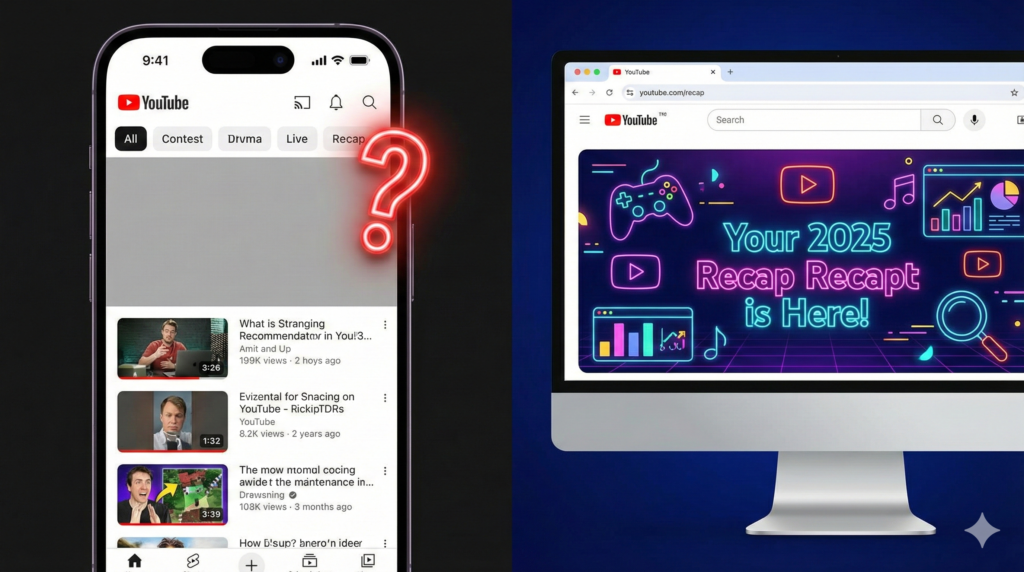
Just your standard homepage recommendations. No “2025 Recap.” No colorful graphics. Just a void where your data should be.
The FOMO (Fear Of Missing Out) hits hard. It feels like you put in the work—you watched the videos, you listened to the albums—but the algorithm forgot to give you your report card. You didn’t stream all that content just to be left out of the global conversation.
Before you panic or assume you didn’t watch enough videos, take a breath. In 90% of cases, your YouTube Recap is actually generated and waiting for you; it is just hidden behind a glitch, a setting, or the wrong profile. The data exists, but the pathway to it is blocked.
This guide is your roadmap. We are going to bypass the glitches and force the app to show you your stats. Here are the 5 immediate fixes to get your YouTube Recap to show up right now.
1. The “Magic Link” Method (Desktop & Mobile)
Sometimes, the app’s user interface (UI) is the problem. YouTube pushes out updates in waves, and if your specific version of the app hasn’t received the “server-side switch” to display the Recap banner, you might never see it on the homepage regardless of how much you scroll.
The fastest way to bypass a buggy app interface is to go directly to the source. YouTube creates a specific landing page for these stats that exists outside of the standard app navigation.
- How to use the Magic Link on Mobile
If you are on your phone, simply clicking the link might just open the app and take you back to the same broken homepage. You need to force the browser to do the work.
- Open your mobile browser (Chrome, Safari, or Firefox).
- Type in the URL:
youtube.com/recap. - Crucial Step: If it tries to auto-open the YouTube app, cancel it. You want to stay in the browser.
- Log in to your Google Account if prompted.
- Look for a “Get your Recap” button on this landing page. clicking this will often “force” the deep link to open the specific Recap playlist in your app, bypassing the missing banner.
How to use it on Desktop
While the YouTube Music Recap is often mobile-first, the main YouTube Video Recap is viewable on desktop.
- Navigate to the same URL (
youtube.com/recap). - This should take you directly to your “2025 Recap” playlist.
- While you might miss out on the vertical, “Story-style” tapping experience available on mobile, you will still see your top videos, top channels, and total stats listed in the playlist description or banner.
2. The “Brand Account” Trap (Most Common Reason)
If the magic link didn’t work, this is the most likely culprit. This specific issue causes more confusion than any other setting on YouTube.
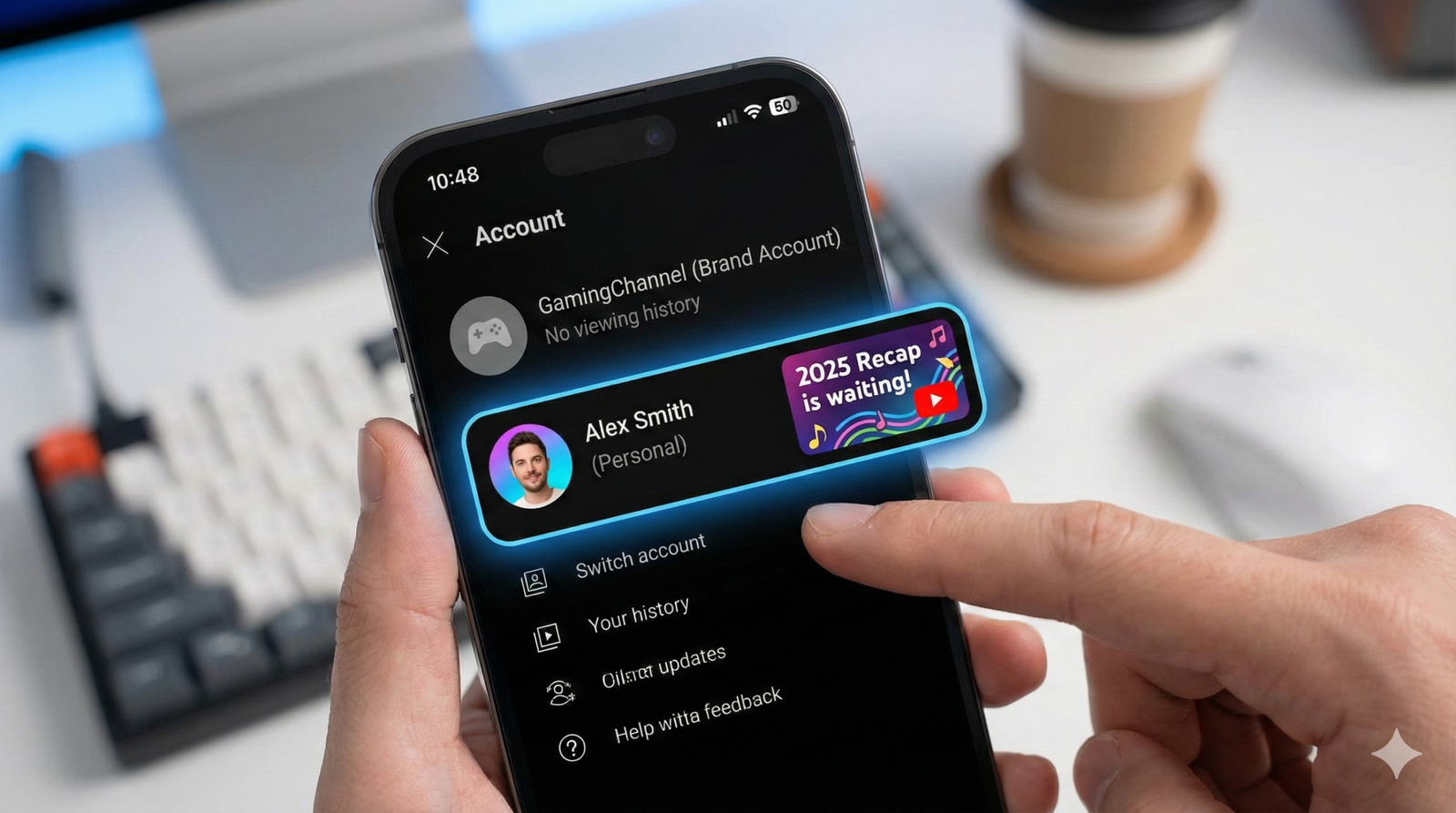
Many users unknowingly have two “identities” tied to a single email address:
- Your Personal Profile: Usually your real name (e.g., “John Smith”).
- Your Brand Account: A channel name you might have created years ago to comment or upload videos (e.g., “GamingJohn25”).
- Why this kills your Recap
YouTube treats these as two completely separate people.
If you spend all year watching videos on your Brand Account, but you are currently logged into your Personal Profile, your Recap will show up as empty or not appear at all because that specific profile has zero watch history.
Conversely, if your Recap shows up but the data looks wrong (e.g., it says you only watched 2 hours of video when you know you watched 200), you are likely looking at the stats for your neglected secondary profile.
How to Fix the Account Mismatch
You need to check all profiles associated with your email.
- Open the YouTube App.
- Tap your Profile Picture in the bottom right corner.
- Look for an option that says “Switch Account” (or tap the arrow next to your name).
- You will see a list of channels.
- Action: Tap on the other account listed there.
- Once the app reloads with the new profile, wait 5-10 seconds. The “2025 Recap” banner will likely pop up on the main feed.
Note: If you use YouTube Music, you have to do this separately in the YouTube Music app. Your listening history on your Brand Account does not transfer to your Personal Account.
3. Check Your “Watch History” Settings
This is the “hard truth” section. For YouTube to generate a Recap, it needs to know what you watched. If you are a privacy-conscious user who turned off history tracking, you have unfortunately opted out of the Recap feature by default.
The Recap algorithm requires a continuous stream of data, generally from January 1st to November 15th. If your history was paused during this time, the engine has nothing to analyze.
The “Auto-Delete” Sabotage
Even if you didn’t fully pause your history, you might have enabled “Auto-Delete.”
- If you set Google to “Auto-delete activity older than 3 months,” by the time December rolls around, YouTube has already forgotten what you watched in January, February, March, and so on.
- Without the full year’s data, YouTube often disqualifies you from a Recap because the sample size is too small to be accurate.
How to Verify Your History Status
- Open the YouTube App and tap your profile photo.
- Select Settings (gear icon).
- Tap on “Manage all history” or “Your data in YouTube”.
- Look for the “YouTube Watch History” section.
- Does it say “On”? If yes, you are good.
- Does it say “Paused”? If yes, this is why you have no Recap.
- Check the “Auto-delete” setting below it.
Can you fix it for this year?
Sadly, no. If the history wasn’t recorded, it cannot be recovered. However, turning it on now ensures you will have a Recap waiting for you in 2026.
4. Force Update and Cache Clear
Sometimes the issue isn’t your account or your history; it’s just “digital junk.”
Apps accumulate cached data—images, scripts, and temporary files—to load faster. Over time, this cache can get corrupted. If your app is holding onto an old version of the homepage layout from October, it simply won’t know how to display the new December Recap banner.
For Android Users
Android allows you to surgically remove this temporary data without deleting the app.
- Go to your phone’s Settings.
- Navigate to Apps > See all apps > YouTube.
- Tap on Storage & Cache.
- Tap Clear Cache. (Do not tap Clear Storage unless you want to re-login and lose your downloaded videos).
- Restart the YouTube app.
For iOS (iPhone) Users
iPhones handle cache differently. The “Offload App” feature is useful, but for a UI glitch, a full reinstall is often better.
- Long press the YouTube app icon.
- Select Remove App > Delete App.
- Go to the App Store and redownload it.
- This forces the app to pull the absolute latest version of the server data, often triggering the Recap banner to appear upon first login.
Check Your Version Number
Ensure you are running version 19.45 or higher (or whatever the latest build is for December 2025). If your app is outdated, the Recap feature—which is built on new code—physically cannot run.
5. The “Kids Content” & Eligibility Rule
This is a lesser-known restriction that frustrates parents and specific niche viewers. YouTube has strict laws regarding data collection on content designated as “Made for Kids” (due to COPPA regulations).
When a creator marks a video as “Made for Kids,” YouTube stops collecting personalized data on who watches it.
The “Cocomelon” Effect
If you are a parent and you let your toddler watch Bluey, Cocomelon, or Ms. Rachel on your account for 80% of the year, YouTube might not generate a Recap for you.
- Why? Because the majority of your watch time is on content that is legally ineligible for data tracking.
- The algorithm looks at your “adult” (general audience) watch time. If that remaining 20% doesn’t meet the minimum threshold, the system assumes you don’t have enough data to generate a meaningful report.
Minimum Thresholds for Eligibility
To get a YouTube Recap, you generally need to meet these hidden criteria:
- Music: At least 10 hours of music listening time on YouTube or YouTube Music.
- Video: You must have watched videos from at least 5 unique channels across different categories.
- Timeframe: The activity must have occurred between Jan 1 and Nov 15.
If you primarily use YouTube in Incognito Mode or while logged out, this data is also not counted.
What’s Inside a YouTube Recap? (The Ingredients)
If you have followed the steps above and finally managed to get your Recap to load, you might be wondering: Is it even worth the hassle?
Unlike Spotify, which focuses heavily on songs, YouTube’s Recap is a hybrid of visual and audio data. It paints a picture not just of what you heard, but of what you learned and obsessed over.
Here is the “recipe” of data cards you can expect to see in your 2025 report:
| Ingredient (Card Type) | What It Shows | Why It Matters |
| The “Vibe” Check | Your primary mood (e.g., “Chill,” “Focused,” “Pumped”). | It defines your 2025 personality based on the tempo/style of content. |
| Top “Rabbit Hole” | The specific niche topic you obsessed over. | Proves you watched 50 hours of “Sourdough Baking” or “Mechanical Keyboards.” |
| Your Gaming Stat | Top games watched by hours viewed. | The hidden “Gaming Recap” gem that tells you if you preferred Minecraft or GTA VI. |
| The “Super Fan” Badge | If you are in the top 0.1% of a creator’s audience. | The ultimate bragging rights to screenshot and tag your favorite creator. |
| The Seasonal Calendar | A timeline of what you watched during different seasons. | Shows how your interests shifted from “Fitness” in January to “Comfort Food” in November. |
The Difference Between YouTube Music & Video Recap
A major point of confusion is that there are actually two Recaps.
1. YouTube Music Recap
- Where to find it: Inside the YouTube Music app.
- Focus: Songs, Albums, Artists, Minutes Listened.
- Competitor: This is the direct rival to Spotify Wrapped.
2. YouTube Main App Recap
- Where to find it: Inside the standard YouTube app.
- Focus: Vloggers, Gaming, Tutorials, Podcasts, and Long-form video.
- Unique Feature: It tracks “Niche Interests” (e.g., “You were in the top 5% of viewers for ‘Coffee Brewing’ videos”).
If you are looking for your top songs but looking in the main YouTube app, you might find a “Gaming Recap” instead. Make sure you are checking the correct app for the specific stats you want.
Frequently Asked Questions (FAQ)
Why is my YouTube Recap not showing up 2025?
The most common reasons are:
- You are logged into the wrong “Brand Account” (switch profiles to check).
- Your “Watch History” was paused or set to auto-delete.
- You haven’t updated your app to the latest December 2025 version.
- You didn’t watch enough eligible content (less than 10 hours).
Does YouTube Recap count offline downloads?
Yes, but with a catch. Your offline listening and viewing history is recorded on your device. However, for that data to be included in your Recap, your device must have reconnected to Wi-Fi and synced with YouTube’s servers before the data cutoff date (usually November 15th). If you stayed offline past that date, that data is lost for the Recap.
How to see YouTube Music Recap without Premium?
You do not need a YouTube Premium subscription to get a Recap. The feature is available to all free users. You simply need to have logged at least 10 hours of music listening time on the platform during the year.
Can I see my YouTube Recap after December?
The colorful, interactive “Story” banner usually disappears from the homepage in January. However, YouTube automatically creates a “2025 Recap Playlist” containing your top songs and videos. This playlist remains in your Library permanently unless you delete it, so you can revisit your top tracks years later.
Why are my stats wrong?
If your stats seem surprisingly low (e.g., “Top Artist” is someone you listened to twice), it is almost always because your listening time was split between devices or accounts. If you listen to music on your Smart TV on a “Family Account” but listen on your phone on a “Personal Account,” YouTube cannot merge those two datasets.
Conclusion: Don’t Let the Algorithm Win
Digital recaps have become a huge part of our online culture. They act as a digital diary, reminding us of the phases we went through—the breakup albums, the fitness motivational videos, the gaming deep dives.
It is incredibly frustrating when the technology fails to deliver that moment of reflection. However, in almost every scenario, the issue is solvable.
Remember to check your Brand Accounts, verify your History settings, and try the Magic Link. Don’t let a buggy interface stop you from seeing your year in review.
Now it’s your turn. Did you find your Recap hiding in a secondary account? Or did the “Kids Content” rule ruin your stats? Tell us your “Top Rabbit Hole” or your “Listening Personality” in the comments below—unless it’s too embarrassing to share!
open your recap, to find your youtubev, find your youtube recap