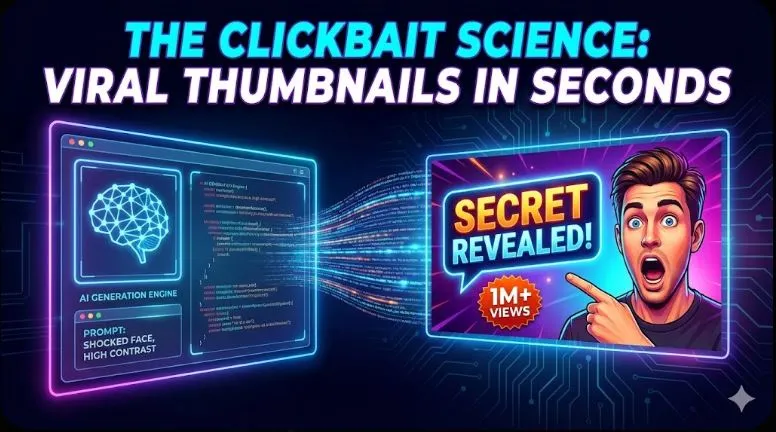
The Clickbait Science: How to Use AI to Generate Viral YouTube Thumbnails in Seconds (2026)
Table of Contents
“How To use ai” : Let’s be honest for a second. You could have the greatest video script since The Godfather. You could edit with the precision of a Hollywood director. You could have perfect audio, amazing lighting, and a joke every thirty seconds.
But if your thumbnail sucks, nobody will ever know.
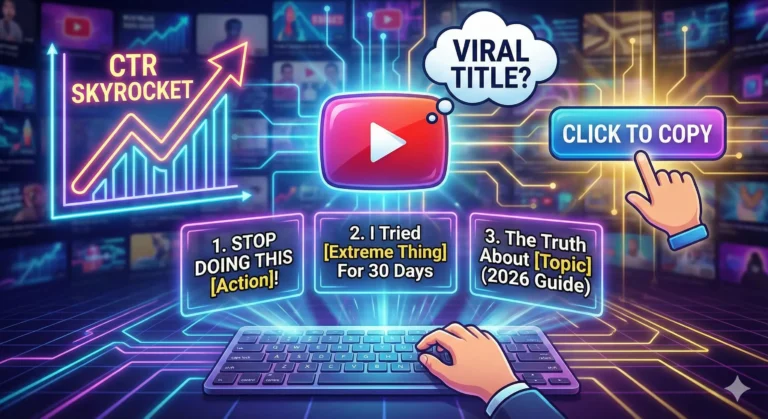
This is the brutal reality of YouTube in 2026. The algorithm doesn’t “watch” your video first; it looks at the data. And the most important data point it craves is CTR (Click-Through Rate). If people scroll past your video without stopping, the algorithm assumes your content is boring and buries it.
For years, the top creators—the MrBeasts, the MKBHDs—had a massive advantage. They could afford to pay professional graphic designers $50, $100, or even $500 for a single image. They had teams tweaking contrast curves and facial expressions while you were struggling with a blurry screenshot in Canva.
That gap is gone.
With the arrival of Midjourney v7 and Ideogram 2.0, the playing field hasn’t just leveled; it has completely flipped. You now have a digital art department at your fingertips that costs pennies.
In this guide, we aren’t just going to give you a few prompts. We are going to break down the psychology of the click, the exact AI workflow to generate “God-tier” images, and the post-production secrets that separate the amateurs from the pros.
Buckle up. We are about to fix your Click-Through Rate forever.
The 1-Second Rule: Why You Lose Views
Human attention spans are shrinking. When a viewer opens YouTube on their phone, they scroll at a speed of about two videos per second.
That means you have roughly 0.5 to 1 second to stop their thumb.
If your thumbnail is dark, cluttered, or confusing, you lose. If your text is too small to read on an iPhone Mini, you lose. If your image looks like a generic stock photo, you lose.
Your thumbnail has one job: To sell the click. It is not there to summarize the video. It is there to open a “loop” in the viewer’s brain that can only be closed by watching the content.
The reason AI is such a game-changer here is speed. In the old days, if you had an idea for a thumbnail, you had to stage a photoshoot, set up lights, take 50 photos, and edit them. If the concept didn’t work, you wasted a whole day.
Now? You can imagine a scenario—“A golden retriever piloting a spaceship to Mars”—and see four high-resolution variations of it in sixty seconds. You can fail faster, iterate quicker, and find the winning concept before you even open Photoshop.
Phase 1: The Psychology of a “Viral” Image
How to Use AI Effectively for Thumbnails
Before you type a single prompt into Discord, you need to understand what you are asking for. AI is a tool, not a brain. If you ask for garbage, it will give you high-resolution garbage.
To get a “Viral” result, your prompt must target the lizard brain of your viewer. Every 10/10 thumbnail relies on these three psychological pillars:
1. High-Dynamic Contrast
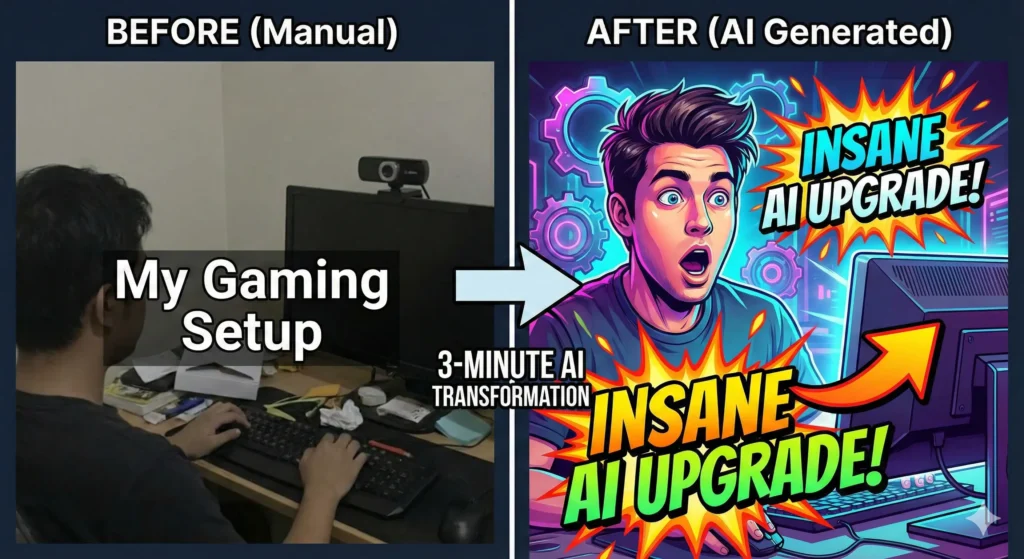
Look at the trending tab. What do you see? You see bright, saturated colors—Cyan, Magenta, Lime Green—popping against dark, moody backgrounds. This isn’t an accident. Most YouTube viewing happens on mobile devices in “Dark Mode.” A thumbnail with low contrast blends into the background. A thumbnail with High Contrast screams for attention.
- The Lesson: When prompting AI, you don’t just want “lighting.” You want “volumetric lighting,” “neon accents,” or “dramatic rim lighting.”
2. Biological Emotion
We are hardwired to look at faces. It’s an evolutionary survival trait. When we see a face showing extreme emotion—fear, shock, uncontrollable laughter—our brains instinctively want to know why. A neutral face is boring. A face that looks like it just saw a ghost is clickbait gold.
- The Lesson: You need AI to generate characters with “exaggerated expressions.”
3. The “Story Gap”
This is the most advanced technique. A bad thumbnail shows exactly what happens in the video. A great thumbnail shows a conflict without the resolution.
- Bad: A picture of a clean room. Text: “I cleaned my room.”
- Good: A picture of a room filled with radioactive waste barrels. Text: “I bought the dirtiest house in America.” The viewer’s brain asks: “Wait, is that real? How bad is it?” They have to click to find out.
Phase 2: The Tool Stack (Midjourney vs. Ideogram)
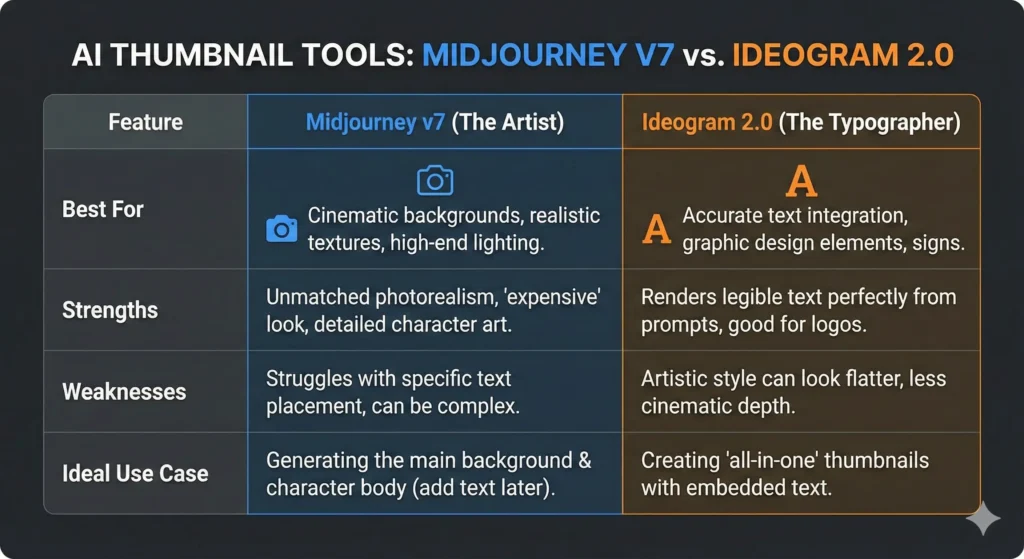
In 2026, you have two heavyweights in the generative AI space. Knowing which one to use is half the battle.
The Artist: Midjourney v7
Midjourney is the undisputed king of texture, lighting, and “vibes.” It understands cinematic composition better than most human photographers.
- Use it for: Backgrounds, fantasy elements, hyper-realistic textures, and object-focused images.
- The Vibe: It looks expensive. The images have depth, bokeh (background blur), and detailed skin textures.
- The Weakness: While v7 is better at text, it can still struggle with complex sentences or specific logo placement.
The Designer: Ideogram 2.0
Ideogram was built with one goal: To fix the “text problem.”
- Use it for: Thumbnails where the text needs to be embedded in the image (e.g., a neon sign, a billboard, or text on a shirt).
- The Vibe: It feels more “graphic design” and less “cinematic art.”
- The Strength: You can literally prompt: “A YouTube thumbnail with a big red arrow and the text ‘DO NOT BUY’ in bold white letters” and it will actually do it.
My Recommendation: Use a hybrid workflow. Use Midjourney to generate the stunning background and character, then bring it into Canva/Photoshop to add your text. This gives you the best of both worlds.
Phase 3: The Step-by-Step Workflow
Stop guessing. Here is the exact pipeline you can copy to create a thumbnail that looks like you paid $100 for it.
Step 1: The Concept Prompt (Midjourney)
Let’s say you are making a tech review video about a bad laptop. You want a dramatic, high-contrast image.
Open Discord and type this command. Notice the specific keywords used to trigger the “YouTuber Aesthetic.”
/imagine prompt: A YouTube thumbnail split screen composition. Left side: An old, dusty, broken laptop in a dark room, cobwebs, sad blue lighting. Right side: A futuristic glowing high-tech laptop, neon orange and teal lighting, sparks flying. In the center, a person looking shocked and pointing at the right side. Hyper-realistic, 8k, cinematic lighting, high contrast --ar 16:9 --stylize 400 --v 7
Breakdown of the Prompt:
--ar 16:9: This ensures the image is the correct shape for YouTube.--stylize 400: This tells Midjourney to be more artistic and less literal.Split screen: A classic YouTube trope that implies comparison.
Step 2: The Face Swap (The Personal Branding Hack)
This is where most people fail. They leave the generic AI person in the thumbnail. Do not do this. If viewers see a fake AI person, they assume the video is spam. You need your face on the thumbnail to build a connection.
You don’t need to be a Photoshop wizard to fix this. You can use an automated “Face Swap.”
- Take a Selfie: Stand against a white wall. Make the exact face you want (Shocked, Angry, Happy). Good lighting helps.
- Use InsightFace (Discord Bot): This is a free tool you can invite to your own Discord server.
- Command:
/saveid [name] [upload your selfie] - Command:
/swapid [name] [upload the Midjourney image]
- Command:
- The Result: The bot will take the lighting, angle, and composition of the cool AI image but paste your facial features onto the character. It looks seamless and takes 10 seconds.
Step 3: The Upscale
Midjourney images are great, but they can be a bit soft when you zoom in. Before you finalize, run your image through an AI upscaler.
- Paid Tool: Topaz Gigapixel (The industry standard).
- Free Tool: Upscayl (Open source and fantastic).
- Why? Crisp edges make your thumbnail look professional on 4K monitors and TVs.
Step 4: The Typography (Don’t Let AI Do This)
Even if Ideogram can do text, you should usually do it yourself. You want full control over the font weight, color, and shadow.
Take your image into your editor (Canva, Photoshop, or Photopea).
The Rules of Text:
- Less is More: Never use more than 4 words. (e.g., “STOP DOING THIS” or “I WAS WRONG”).
- The Font Matters: Stop using Arial or Times New Roman. You need thick, bold, impact fonts.
- Favorites: Bebas Neue, Montserrat ExtraBold, Komika Axis.
- Pro Tip: If you want to stand out, stop using the free Google fonts everyone else uses. A premium font can be the subtle difference that makes your channel look like a brand. (Check out our Luxury Font Bundle if you want a curated list of high-CTR typefaces).
- Contrast is King: If the background is dark, use white text. If the background is light, use black or red text. Always add a drop shadow or a black “stroke” (outline) around your text to ensure it is readable against any background.
Strategy for the “Faceless” Channel
What if you are running a “Cash Cow” channel (Meditation, Scary Stories, Tech News) and you don’t want to show your face?
You have an advantage here. You don’t need to worry about face swapping. Your goal is Object Fetishization.
You want to take a mundane object and make it look supernatural.
Example: A video about Bitcoin.
- Boring Prompt: “A bitcoin on a table.”
- Viral Prompt: “A hyper-realistic 3D render of a golden physical bitcoin melting into liquid gold, placed on a dark obsidian table, ominous red lighting, smoke rising, dramatic cinematic angle –ar 16:9”
Example: A video about a Scary Story.
- Viral Prompt: “A first-person view from inside a closet looking out at a dark bedroom, a glowing pair of red eyes under the bed, foggy atmosphere, horror movie style –ar 16:9”
To make these pop, you often need to add graphical elements—big red arrows, circles highlighting a detail, or “exclamation mark” emojis. Don’t just search Google Images for “Red Arrow PNG” (you usually get fake transparent backgrounds that are annoying). We built a specific Graphic Design Bundle for this exact purpose—high-quality overlays that you can drag and drop onto your AI art.
Common Pitfalls: How to Ruin a Good AI Image
Just because it is AI doesn’t mean it is perfect. Here are the mistakes that will tank your CTR.
1. The “Plastic” Look Midjourney v6 and v7 can sometimes make skin look too smooth, like plastic action figures.
- Fix: Add keywords like
skin texture,detailed pores,grit, orraw phototo your prompt. You want it to look human, not like a doll.
2. Visual Clutter AI loves to add details. Sometimes it adds too many details. If your background has 50 different items on a shelf, the thumbnail becomes “noisy.”
- Fix: Use the command
--no clutteror--no textin your prompt. Or, use the “Blur” tool in Photoshop to blur out the background so the focus stays on the subject.
3. The “Uncanny Valley” Hands Yes, even in 2026, AI can sometimes mess up fingers. Always double-check the hands in your generated image.
- Fix: If the hands are weird, crop the image so the hands aren’t visible, or use the “Vary Region” (Inpainting) tool in Midjourney to re-roll just the hands until they look right.
Conclusion: Data Over Ego
The most beautiful art in the world is useless if nobody clicks on it. The ugly, bright, high-contrast image often wins.
The beauty of this AI workflow is that it removes your ego from the equation. In the past, you fell in love with a thumbnail because you spent 3 hours making it. Now, you can spend 3 minutes making five different versions.
Test them. Show them to a friend. Scroll past them quickly on your phone and see which one grabs your eye.
You have the tools. You have the prompts. You have the strategy. The only excuse left is you not doing the work.
Go open Discord, type /imagine, and start creating the best thumbnails of your career.
Ready to Build Your Toolkit?
You have the strategy, but do you have the assets?
- The Text: Don’t let weak fonts kill your vibe. Grab our Luxury Font Library for $1.99.
- The Graphics: Add arrows, sparkles, and overlays with our Creator Design Essentials Bundle.
- The Words: Need a script to match that amazing thumbnail? Read our Article Ultimate Content Creator Toolkit.
Stop scrolling. Start creating.